
10.6.1. Using LAMMPS on Windows with WSL
written by Richard Berger, updated for Windows 11 in 2026 by Axel Kohlmeyer
LAMMPS is primarily developed to run on Linux machines and clusters. The Windows Subsystem for Linux (WSL) provides a Linux environment that is tightly integrated into Windows, so that Windows users can compile and run LAMMPS the same way as on a Linux machine. WSL version 2 uses a lightweight virtual machine that runs a real Linux kernel and is installed with a single command.
In this tutorial, we show how to set up WSL on Windows 11 and how to compile and run LAMMPS in serial and in parallel with MPI. The same steps should also work on Windows 10, but note that Windows 10 has reached end of support status on October 14, 2025.
Note
If you only want to run LAMMPS on Windows, you can also use the pre-compiled Windows installer packages. It is also possible to compile LAMMPS natively on Windows with Visual Studio, see Notes for building LAMMPS on Windows.
Installation
Install WSL and Ubuntu Linux
WSL is installed from a terminal with administrator privileges. Right click on the Windows Start button (1) and select “Terminal (Admin)” from the menu (2):
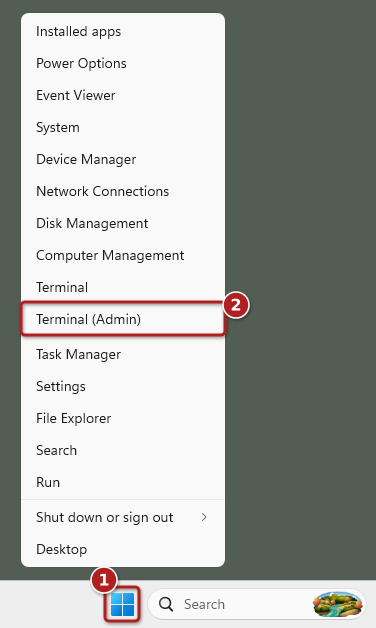
Starting a terminal with administrator privileges
Windows will then ask whether the terminal may make changes to your device. Click on “Yes” (1); note that “No” is selected by default:
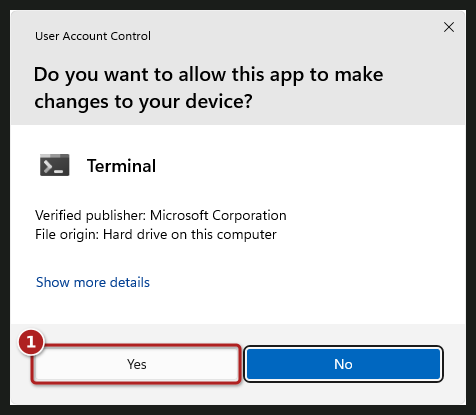
Confirming administrator privileges
A terminal window opens, which may run either the Windows Command Prompt or PowerShell; both work for the following steps. Type in the following command to install WSL:
wsl --install
This will download and install all required components and print progress messages similar to these:
C:\Users\username>wsl --install
Downloading: Windows Subsystem for Linux 3.0.1
Installing: Windows Subsystem for Linux 3.0.1
Windows Subsystem for Linux 3.0.1 has been installed.
Installing Windows optional component: VirtualMachinePlatform

Deployment Image Servicing and Management tool
Version: 10.0.26100.8972

Image Version: 10.0.26200.9457

Enabling feature(s)
[==========================100.0%==========================]
The operation completed successfully.
The requested operation is successful. Changes will not be effective until the system is rebooted.
The requested operation is successful. Changes will not be effective until the system is rebooted.
Once the installation is complete, restart your computer.
Install Ubuntu and initial setup
If the installation of the Linux distribution does not continue by
itself after the restart, open a terminal again (administrator
privileges are no longer needed) and run wsl --install a second
time. This time it will download and install the current long-term
support (LTS) version of the Ubuntu Linux distribution and launch it.
The first time Ubuntu is launched, it asks you for a Linux user name
and password. These do not have to match your Windows user name and
password. You will need this password to run commands with sudo
later. Finally, Ubuntu asks whether you want to share anonymous system
reports with Canonical, the company behind Ubuntu:
C:\Users\username>wsl --install
Downloading: Ubuntu
Installing: Ubuntu
Distribution successfully installed. It can be launched via 'wsl.exe -d Ubuntu'
Launching Ubuntu...
Provisioning the new WSL instance Ubuntu
This might take a while...
Create a default Unix user account: username
New password:
Retype new password:
passwd: password updated successfully
usermod: no changes
Help improve Ubuntu!

Help us improve Ubuntu features and compatibility by sharing system reports with Canonical.
Reports are sent anonymously and do not contain any personal data.
For legal details, please visit: https://ubuntu.com/legal/systems-information-notice

We will save your answer to Windows and will only ask you once.

Would you like to opt-in to platform metrics collection (Y/n)? To see an example of the data collected, enter 'e'.
[Y/n/e]: n
username@Windows11:/mnt/c/Users/username$
Once completed, your Linux shell is ready for use. All your actions and
commands will run as the Linux user you specified. Later, you can
launch Ubuntu from the Start menu or by typing wsl in a terminal.
You can check that the Linux distribution uses WSL version 2 with the
command wsl --list --verbose in a Windows terminal:
C:\Users\username>wsl --list --verbose
  NAME      STATE           VERSION
* Ubuntu    Running         2
Note
You can see the list of available Linux distributions with wsl
--list --online and install a specific one with, e.g., wsl
--install -d Ubuntu-24.04. LAMMPS requires CMake version 3.27 or
later, which is included in Ubuntu 24.04 LTS and later. The
installed WSL version can be updated with wsl --update.
Windows Explorer / WSL integration
Your Linux installation has its own Linux file system with a regular
Linux home folder in /home/<USERNAME>. This folder is different
from your Windows user folder. Windows and Linux file systems are
connected through WSL:
All Windows drives are accessible in the
/mntfolder in Linux. E.g., WSL maps theC:drive to the/mnt/cfolder. That means you can access your Windows user folder in/mnt/c/Users/<WINDOWS_USERNAME>.The Windows Explorer can also access the Linux file system. It is shown under “Linux” in the navigation pane (1) and the address bar (2) shows the location of the current folder. To open the current folder of an Ubuntu console in the Windows Explorer, use the
explorer.exe .command (do not forget the final dot!).
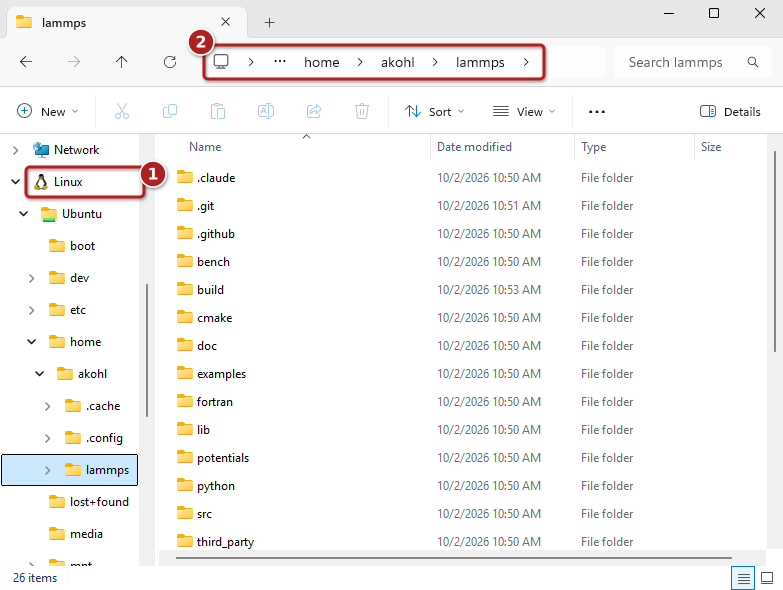
Linux files in the Windows Explorer
Note
Accessing files across the two file systems is much slower than
accessing files in the same file system. Thus you should keep the
LAMMPS source code, the compiled files, and your simulation inputs and
outputs in the Linux file system (e.g. in your Linux home folder) and
not in /mnt/c.
Compiling LAMMPS
You now have a fully functioning Ubuntu installation and can follow most guides to install LAMMPS on a Linux system. Here are the essential steps:
Install prerequisite packages
Before we can begin, we need to download the necessary compiler tool
chain and libraries to compile LAMMPS. In Ubuntu, we use the
apt package manager to install additional packages.
First, upgrade all existing packages using apt update and
apt upgrade.
sudo apt update
sudo apt upgrade -y
Next, install the following packages with apt install:
sudo apt install -y cmake build-essential ccache gfortran git \
                    openmpi-bin libopenmpi-dev libfftw3-dev libjpeg-dev \
                    libpng-dev ffmpeg python3-dev python3-venv libblas-dev \
                    liblapack-dev libhdf5-dev hdf5-tools
Download LAMMPS
First make sure that you are in your Linux home folder. When Ubuntu is
launched from a Windows terminal, the Linux shell starts in the Windows
user folder (e.g. /mnt/c/Users/username), so change to the
Linux home folder with:
cd ~
Then obtain a copy of the LAMMPS source code and go into it using the
cd command.
Option 1: Download the LAMMPS stable version with git (recommended)
git clone -b stable https://github.com/lammps/lammps.git
cd lammps
This creates a local copy of the git repository, which makes it easy to update to newer versions later, see Download the LAMMPS source with git.
Option 2: Download a LAMMPS tarball using wget
The LAMMPS download page lists the tarballs for the current and previous LAMMPS releases. The tarball of the latest release can be downloaded and unpacked with:
wget https://download.lammps.org/tars/lammps.tar.gz
tar xzf lammps.tar.gz
The tarball unpacks into a folder whose name contains the release date,
e.g. lammps-30Sep2026. Use cd to change into it.
Configure and Compile LAMMPS with CMake
There are countless ways to compile LAMMPS. It is beyond the scope of this tutorial to discuss them. If you want to find out more about what can be enabled, please consult the build documentation and the tutorial on using CMake.
To compile a minimal version of LAMMPS, we are going to use a preset.
Presets are a way to specify a collection of CMake options using a file.
The following command configures LAMMPS in the folder build with
the settings from the basic.cmake preset file:
cmake -S cmake -B build -C cmake/presets/basic.cmake
Then compile LAMMPS with:
cmake --build build
This can take a while. You can speed up the compilation by compiling
multiple files in parallel: add -j N to the command, where
N is the number of processors in your system, e.g.
cmake --build build -j 4.
After the compilation completes successfully, you will have an
executable called lmp in the build folder.
Please take note of the absolute path of your build folder. You
will need to know the location to execute the LAMMPS binary later.
One way of getting the absolute path of the current folder is through
the $PWD variable. Let us save the path of the build folder in
a variable LAMMPS_BUILD_DIR for future use:
LAMMPS_BUILD_DIR=$PWD/build
echo $LAMMPS_BUILD_DIR
The full path of the LAMMPS binary then is
$LAMMPS_BUILD_DIR/lmp.
Running an example script
Now that we have a LAMMPS binary, we will run a script from the examples folder.
Switch into the examples/melt folder:
cd examples/melt
To run this example in serial, use the following command:
$LAMMPS_BUILD_DIR/lmp -in in.melt
To run the same script in parallel using MPI with 4 processes, do the following:
mpirun -np 4 $LAMMPS_BUILD_DIR/lmp -in in.melt
In either serial or MPI case, LAMMPS executes and will output something similar to this (here for the parallel run with 4 MPI processes):
LAMMPS (30 Sep 2026)
OMP_NUM_THREADS environment is not set. Defaulting to 1 thread.
  using 1 OpenMP thread(s) per MPI task
# 3d Lennard-Jones melt
...
Created orthogonal box = (0 0 0) to (16.795962 16.795962 16.795962)
  1 by 2 by 2 MPI processor grid
...
Total # of neighbors = 151788
Ave neighs/atom = 37.947
Neighbor list builds = 12
Dangerous builds not checked
Total wall time: 0:00:00
Congratulations! You’ve successfully compiled and executed LAMMPS on WSL!
Final steps
It is cumbersome to always specify the path of your LAMMPS binary. You
can avoid this by adding the absolute path of your build folder
to your PATH environment variable.
export PATH=$LAMMPS_BUILD_DIR:$PATH
You can then run LAMMPS input scripts like this:
lmp -in in.melt
or
mpirun -np 4 lmp -in in.melt
Note
The value of this PATH variable will disappear once you close
your console window. To persist this setting edit the
$HOME/.bashrc file using your favorite text editor and add
this line:
export PATH=/full/path/to/your/lammps/build:$PATH
Example: If the LAMMPS executable lmp has the following absolute path:
/home/<USERNAME>/lammps/build/lmp
the PATH variable should be:
export PATH=/home/<USERNAME>/lammps/build:$PATH
Once set up, all your Ubuntu consoles will always have access to your
lmp binary without having to specify its location.
Working with WSL
After the installation, a “Welcome to Windows Subsystem for Linux” window may appear. It gives an overview of WSL features with links to more detailed documentation, e.g. about working across the Windows and Linux file systems (“Working Across File Systems”) and about running graphical Linux programs (“GUI Apps”).
A few more hints that make working with LAMMPS in WSL more convenient:
WSL supports running graphical Linux programs directly from the Linux console; their windows appear on the Windows desktop like those of Windows programs.
Windows programs, e.g. a visualization program like OVITO installed on Windows, can open files in the Linux file system through the “Linux” entry in their file dialogs.
Several code editors and IDEs that run on Windows, e.g. Visual Studio Code, can directly edit files in WSL and run commands there.
Conclusion
We hope this gives you a good overview on how to start compiling and running LAMMPS on Windows. WSL makes preparing and running scripts on Windows a much better experience.
If you are completely new to Linux, we highly recommend investing some time in studying Linux online tutorials, e.g. tutorials about the Bash shell and basic Unix commands (e.g., Linux Journey). Acquiring these skills will make you much more productive in this environment.